Windows offers a wide range of settings that control how a computer performs, responds and protects your data. From startup applications and power options to security preferences and background services, these controls can have a noticeable effect on everyday computing. Understanding the right settings allows users to create a smoother, more reliable experience without relying on unnecessary third-party optimisation software.
Effective Windows system configuration is not about changing every available option. Instead, it is about understanding which settings matter and adjusting them according to your hardware and personal requirements. Whether you use a laptop for work, a desktop for gaming or an older computer for basic tasks, sensible configuration can help improve responsiveness, stability and overall usability.
Understanding Windows System Configuration
Windows system configuration refers to the collection of settings and tools used to control how the operating system behaves. These include startup programmes, services, drivers, power settings, storage options, security controls and system preferences. Some settings are designed for everyday users, while others are intended for advanced troubleshooting and technical maintenance.
A well-planned Windows system configuration should balance performance, security and stability rather than focusing on speed alone. Disabling important services or changing advanced settings without understanding their purpose can create new problems. For this reason, users should begin with simple adjustments and only explore advanced configuration options when there is a clear reason to do so.
Essential Windows Settings to Configure
The Windows Settings application provides many useful controls for improving the daily computing experience. Users can review display preferences, storage, notifications, privacy permissions, power options and installed applications from one central location. Removing unnecessary applications and controlling background activity can also help reduce resource usage while making the system feel cleaner.
Power settings deserve particular attention, especially on laptops. A performance-focused setting may provide better responsiveness but can consume more battery, while a balanced approach can provide a practical compromise. Storage settings are also important because insufficient free space can make maintenance more difficult. Regularly reviewing temporary files and unused applications can keep the system organised.
Using Windows Configuration and Diagnostic Tools
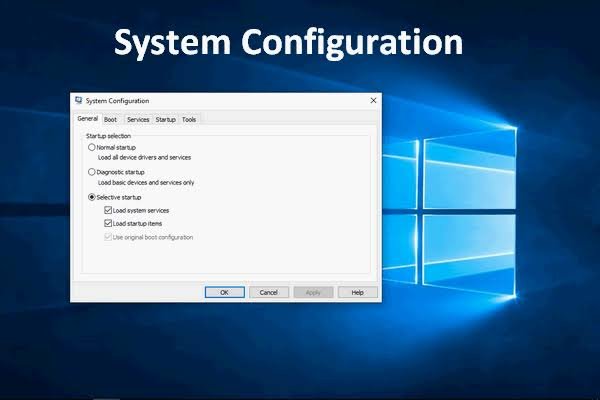
Windows includes several built-in tools that can help users understand and manage their computers. The System Configuration utility, commonly accessed through msconfig, provides options related to boot behaviour, services and troubleshooting. Task Manager is another valuable tool, allowing users to inspect resource usage and manage applications that automatically launch when Windows starts.
Other utilities have different purposes. Device Manager can help identify hardware and driver problems, while System Information provides detailed information about installed components and Windows configuration. These tools are particularly useful when a computer begins behaving unexpectedly. Instead of immediately installing external utilities, users can often diagnose common problems using features already included with Windows.
Optimising Windows for Better Performance

Improving Windows performance often begins with reducing unnecessary activity. Too many startup applications can increase boot times and consume memory after Windows loads. Reviewing the Startup section in Task Manager can help identify applications that do not need to launch automatically. Users should be careful, however, because some programs and security components may be important for normal operation.
Storage, updates and background processes also influence performance. Keeping sufficient free disk space and installing reliable Windows and driver updates can support system stability. Visual effects may also be adjusted on computers with limited resources. However, performance optimisation should be realistic: configuration changes cannot replace additional memory, faster storage or a more capable processor when hardware is the main limitation.
Configuring Windows Security and Privacy
Security should remain a central part of any Windows system configuration strategy. Windows Security provides protection against common threats, while firewall controls help manage potentially unwanted network activity. Keeping Windows updated is equally important because security patches can address vulnerabilities and improve the reliability of the operating system.
Privacy settings deserve regular attention as well. Windows allows users to review permissions for applications, including access to features such as location, camera and microphone. Users should provide permissions only when they are genuinely required. Strong account credentials, sensible administrator access and careful software installation habits can further strengthen a computer without creating unnecessary complexity.
Managing Startup Applications and Background Services
Startup applications can quietly affect the speed and responsiveness of a computer. Many programmes add themselves to the startup process even though users rarely need them immediately after signing in. Reviewing these applications and disabling unnecessary entries can reduce background activity. This simple adjustment can be particularly useful on computers that take a long time to become responsive after startup.
Windows services require greater caution because some are essential to the operating system or installed hardware. Disabling a service simply because its name is unfamiliar can cause unexpected functionality problems. If troubleshooting requires a cleaner environment, users can investigate services carefully or use a clean boot approach. Before making changes, recording the original configuration makes it easier to restore the previous setup.
Windows System Configuration for Gaming and Productivity
Gaming computers often benefit from configuration choices that prioritise performance and reduce unnecessary background activity. Updated graphics drivers, suitable power settings and sensible startup management can help create a more responsive environment. Players should also remember that game performance depends heavily on hardware, graphics settings and the individual game engine, so Windows adjustments alone cannot guarantee higher frame rates.
Productivity computers require a slightly different approach. Someone working with documents, browsers and office applications may value stability, battery life and multitasking more than maximum performance. Notifications can be reduced, unnecessary background applications can be controlled and storage can be maintained regularly. The ideal Windows system configuration therefore depends on what the computer is actually used for rather than following one universal optimisation formula.
Troubleshooting Common Windows Configuration Problems
Configuration problems can appear in many forms, including slow startup, application crashes, excessive CPU usage, unexpected freezes or hardware that stops responding correctly. When an issue appears after a recent change, reversing that change is often a sensible first step. Task Manager and other built-in diagnostic tools can then help identify unusual resource usage or problematic applications.
More serious problems may require additional troubleshooting. Safe Mode can provide a useful environment for investigating software and driver conflicts, while System Restore can help return Windows to an earlier working state when an appropriate restore point exists. Important personal files should always be backed up. If a problem involves critical data or repeated system failures, professional technical support may be the safer option.
Best Practices for Safe Windows Configuration
Safe configuration starts with preparation. Before making significant changes, users should consider creating a restore point and ensuring important files are backed up. Making one major change at a time is also helpful because it makes troubleshooting easier if something stops working. Keeping a simple record of changed settings can save considerable time when restoring the previous configuration.
Users should also avoid aggressive optimisation guides that recommend disabling numerous Windows components without explaining their purpose. Registry modifications, unfamiliar scripts and third-party cleaning tools can introduce unnecessary risks. A reliable approach is to use Windows’ built-in settings wherever possible and make changes based on a specific performance, security or troubleshooting requirement rather than changing settings simply because they are available.
Maintaining an Optimised Windows System
Windows configuration should not be treated as a one-time task. Applications are installed and removed, drivers change, Windows receives updates and user requirements evolve. Periodically reviewing startup programmes, installed software, storage usage and security settings can help keep the computer running efficiently. Small maintenance tasks performed consistently are generally safer than attempting major optimisation sessions after problems have already developed.
Hardware upgrades can also create new configuration requirements. Adding memory, replacing a storage drive or installing new peripherals may require updated drivers or revised settings. After significant system changes, checking Device Manager, Windows Update and available system information can help confirm that everything is working correctly. A clean and regularly maintained installation is easier to troubleshoot and usually provides a more predictable experience.
Conclusion
A carefully managed Windows system configuration can improve the way a computer performs without requiring complicated modifications. Startup management, storage maintenance, power settings, security controls and built-in diagnostic tools all provide practical ways to improve the Windows experience. The most effective approach is to make sensible changes gradually while keeping stability and security at the centre of every decision.
Users should remember that optimisation has limits. Configuration can reduce unnecessary software activity and improve system organisation, but it cannot overcome fundamental hardware limitations. By using reliable Windows tools, maintaining backups and avoiding risky changes, users can build a faster, safer and more dependable computer environment that remains suitable for their everyday needs.
Frequently Asked Questions
What is Windows system configuration?
Windows system configuration is the process of managing settings that control how Windows operates. It can include startup programmes, services, drivers, power options, security settings, storage preferences and other operating system controls.
How do I access Windows configuration settings?
Most everyday settings can be accessed through the Windows Settings application. Advanced users can also use tools such as System Configuration, Task Manager, Device Manager and System Information for troubleshooting and system management.
Can Windows configuration make my PC faster?
Yes, sensible configuration can improve responsiveness by reducing unnecessary startup applications, managing background activity and maintaining sufficient storage space. However, software optimisation cannot fully compensate for outdated or insufficient hardware.
Is it safe to change Windows system settings?
Basic settings are generally safe to adjust when their purpose is understood. Advanced settings should be changed carefully, particularly services, boot options and registry entries. Creating a restore point and backing up important files before major changes is recommended.
How can I improve Windows startup speed?
Review applications that launch automatically and disable programmes that are not needed at startup. Keeping Windows and essential drivers updated and maintaining adequate storage space can also support a smoother startup experience.
Does Windows system configuration affect gaming?
It can. Appropriate power settings, updated graphics drivers and reduced background activity may help create a more responsive gaming environment. Nevertheless, gaming performance is also strongly influenced by the processor, graphics card, memory and game settings.
What should I do if a configuration change causes a problem?
First, consider reversing the most recent change. If the problem continues, Windows troubleshooting options such as Safe Mode or System Restore may help. Always keep important personal data backed up before performing major recovery or configuration changes.