Introduction to Terminal-based setups
Terminal-based setups have become an important part of modern computing, particularly for developers, system administrators, and technical users. Instead of relying entirely on graphical applications, users can control files, software, servers, and development tools through commands. A carefully designed terminal environment can make everyday tasks faster, more consistent, and easier to automate.
The real strength of a terminal comes from flexibility. Users can create shortcuts, combine commands, automate repetitive processes, and access remote systems without constantly moving between different applications. Whether you are managing a Linux machine, developing software, or organising files, a practical command-line workflow can turn complicated tasks into simple, repeatable actions.
Understanding the Benefits of Terminal-based setups
One of the biggest advantages of Terminal-based setups is speed. Once users become comfortable with common commands and keyboard shortcuts, many operations can be completed without reaching for a mouse. Searching files, moving between directories, checking processes, editing text, and running development commands can all happen within the same environment.
Another major benefit is automation. A task that takes several minutes when performed manually can often be converted into a short script or command sequence. Terminal environments also work particularly well with remote servers, making them valuable for cloud administration and development. This combination of speed, automation, and flexibility makes the command line a powerful productivity tool.
Choosing the Right Terminal and Shell
A terminal emulator provides the interface through which users interact with a shell. Popular choices are available across Linux, macOS, and Windows, with different options focusing on performance, customisation, appearance, or integration. Choosing a terminal should therefore depend on the operating system and the type of work you perform regularly.
The shell is equally important because it interprets the commands you enter. Bash remains widely supported, while Zsh offers extensive customisation and Fish focuses on a friendly user experience. Windows users may also benefit from PowerShell. The best choice is not necessarily the shell with the most features, but the one that feels reliable and comfortable for your everyday workflow.
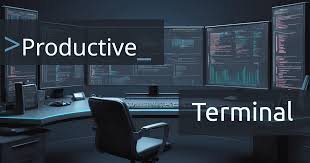
Essential Tools for a Productive Terminal Workflow
A productive terminal environment does not need dozens of applications. Start with reliable tools for navigating directories, searching files, inspecting text, monitoring processes, and managing system resources. Learning a small collection of useful commands is often more valuable than installing a large collection of unfamiliar utilities that you rarely use.
Text editors are another important part of the command-line experience. Editors such as Vim and Neovim can provide powerful keyboard-driven workflows, while simpler editors may be more suitable for beginners. Search utilities, fuzzy finders, directory navigation tools, and improved command history can further reduce repetitive actions and help users find information quickly.
Customising Terminal-based setups
Customisation can transform an ordinary command-line environment into a workspace designed around personal habits. Simple aliases can replace long commands, while shell functions can handle slightly more complicated tasks. A customised prompt can also display useful information such as the current directory, Git branch, or system status without overwhelming the screen.
Dotfiles are another useful part of Terminal-based setups. These configuration files can contain shell preferences, aliases, functions, editor settings, and other personal choices. Keeping them organised and backed up makes it easier to recreate the same environment on another computer. However, customisation should remain practical, because excessive plugins and complicated configurations can make a terminal slower and harder to maintain.
Improving Productivity with Command-line Automation
Automation is where the command line becomes especially powerful. Shell scripts can perform repeated actions such as renaming files, processing documents, creating project folders, running tests, or backing up information. Instead of repeating the same sequence manually, users can create a reliable workflow that performs the work with a single command.
Pipelines and command chaining also allow simple utilities to work together. One command can produce information that another command processes, creating efficient workflows without requiring a large application. Environment variables can store reusable settings, while scheduled tasks can handle recurring operations. The key is to automate tasks that are genuinely repetitive rather than creating unnecessary complexity.
Integrating Development Tools into Terminal-based setups
Developers can use the terminal as a central workspace for writing, testing, and managing software projects. Git commands make it possible to create branches, review changes, commit updates, and synchronise projects without leaving the command line. Package managers and build tools can also be accessed directly, creating a streamlined development process.
Terminal-based setups become even more useful when combined with tools such as tmux. A terminal multiplexer allows several sessions and tasks to remain organised within a single terminal window. Developers can edit code, run tests, monitor logs, and manage servers without repeatedly opening separate applications. Remote access through SSH also makes these workflows practical for cloud servers and other machines.
Security and Best Practices for Terminal-based setups
Security should always be considered when building a command-line environment. Administrative commands can make significant changes to a system, so users should understand what a command does before executing it. Copying commands from unfamiliar websites can be risky, particularly when those commands involve permissions, downloads, or system configuration.
Sensitive information should also be protected carefully. SSH keys, passwords, API credentials, and environment variables should not be exposed in configuration files or public repositories. Regular backups are useful for recovering important settings, while version control can help track configuration changes. A secure terminal environment should balance convenience with careful permission management and responsible command usage.
Optimising Terminal-based setups for Different Users
Developers may benefit from Git integration, programming language tools, terminal editors, testing commands, and project-specific shortcuts. System administrators may prioritise SSH, process monitoring, log management, networking utilities, and automation. Students and casual users can keep things much simpler by focusing on navigation, file management, text processing, and a few useful aliases.
Older computers can also benefit from a lightweight command-line environment because terminal applications generally require fewer graphical resources. Beginners should avoid trying to copy a highly customised setup immediately. Building gradually makes it easier to understand what each component does. Over time, users can add tools based on actual requirements rather than installing features simply because they appear popular.
Common Mistakes to Avoid
A common mistake is installing too many plugins and utilities at once. Although a highly customised terminal can look impressive, unnecessary components may slow startup times and make troubleshooting difficult. Another problem is creating dozens of aliases that are difficult to remember. A small collection of meaningful shortcuts is usually more useful than a complicated collection that requires constant reference.
Users should also avoid ignoring documentation and configuration backups. Shell behaviour can vary between systems, and a setting that works perfectly on one machine may cause problems elsewhere. Dangerous commands should never be executed without understanding their consequences. The best terminal environment is not necessarily the most elaborate one; it is the environment that remains fast, understandable, reliable, and useful.
How to Build a Terminal-based setup Step by Step
Begin with a dependable terminal emulator and choose a shell that matches your experience and operating system. Learn essential commands for navigation, file management, searching, and process control before adding advanced customisation. This foundation will make later improvements easier to understand and prevent the setup from becoming unnecessarily complicated.
Once the basics are comfortable, introduce aliases, shell functions, Git integration, a preferred editor, and useful productivity utilities. Store configuration files safely and consider using version control for important dotfiles. Test every addition before expanding further. By improving the environment gradually, users can create a workflow that feels natural while remaining fast, portable, secure, and easy to maintain.
Conclusion
Well-designed Terminal-based setups can significantly improve the way users interact with computers. They provide fast keyboard-driven navigation, powerful automation, flexible customisation, and excellent support for development and remote administration. More importantly, they allow users to create workflows that match their individual requirements instead of depending entirely on pre-designed graphical interfaces.
The best approach is to start small and build according to real needs. Choose a suitable shell, learn essential commands, add practical tools, automate repetitive work, and maintain strong security habits. With thoughtful configuration and regular refinement, the terminal can become a highly efficient workspace that supports both simple daily tasks and demanding technical projects.
Frequently Asked Questions
What are Terminal-based setups?
Terminal-based setups are computing environments centred around a terminal emulator, shell, command-line utilities, scripts, and configuration files. They allow users to control systems primarily through typed commands rather than graphical interfaces.
Why use a terminal instead of a graphical interface?
A terminal can provide faster keyboard-driven navigation, powerful automation, remote system access, and repeatable workflows. It is particularly useful when performing technical or repetitive tasks.
Which shell is best for Terminal-based setups?
Bash, Zsh, Fish, and PowerShell are popular choices. The best option depends on the operating system, personal preferences, compatibility requirements, and the type of tasks being performed.
Can beginners use Terminal-based setups?
Yes. Beginners can start with basic commands for navigating directories, managing files, and searching information. More advanced scripting and customisation can be introduced gradually as confidence increases.
How can Terminal-based setups improve productivity?
They can improve productivity through aliases, scripts, keyboard shortcuts, command history, pipelines, automation, and integrated development tools. These features reduce repetitive work and make common tasks easier to repeat.
Are Terminal-based setups secure?
They can be very secure when used responsibly. Users should understand commands before executing them, protect credentials and SSH keys, manage permissions carefully, and avoid running unknown commands from untrusted sources.
How can I customise my terminal without making it complicated?
Start with useful aliases, a clear prompt, a few essential tools, and simple shell functions. Add new features only when they solve a genuine problem in your workflow.
Are Terminal-based setups useful for developers?
Yes. Developers can use the terminal for Git, package management, testing, compiling, scripting, debugging, project navigation, server management, and remote development through tools such as SSH.