Introduction
Mac computers are designed to offer a smooth experience, but the default configuration may not always suit every user. From display preferences and notifications to privacy controls and battery options, macOS provides a wide range of tools for personalisation. Understanding Mac system settings allows users to create a more comfortable, secure and productive computing environment without relying on additional software.
Whether you are using a MacBook for work, studying, creative projects or everyday browsing, learning how its settings work can make a noticeable difference. The modern System Settings interface brings many important controls together, making it easier to adjust your Mac according to your needs while keeping essential security and privacy options within easy reach.
What Are Mac System Settings?
Mac system settings are the central controls used to manage how your Mac looks, behaves and connects with other devices and services. They include options for displays, sound, Wi-Fi, Bluetooth, notifications, users, privacy, security, accessibility and more. Instead of changing individual preferences randomly, users can use these controls to create a more consistent and personalised Mac experience.
Apple changed the name from System Preferences to System Settings in newer versions of macOS, while also redesigning the interface. Although the appearance is different, the main purpose remains similar. Users can browse categories through the sidebar or search for a particular option, which makes finding important controls much quicker than manually checking every available menu.
How to Open Mac System Settings
Opening System Settings is straightforward. The most familiar method is to select the Apple menu in the top-left corner of the screen and choose System Settings. Once opened, users can browse categories from the sidebar and select the area they want to change. This approach is useful when you want to explore available features and discover new customisation options.
If you already know what you need, searching can save time. The search field inside System Settings can help locate specific options without navigating through several menus. Spotlight can also help users find applications and settings quickly. This is particularly useful for beginners who may not yet know where particular macOS controls are located.
Personalise Your Mac With System Settings
One of the biggest advantages of Mac system settings is the ability to personalise the overall appearance and behaviour of your computer. Users can change wallpaper, select Light or Dark appearance, adjust Dock preferences and customise aspects of the menu bar. These small changes can make the desktop feel more comfortable and better suited to individual working habits.
Notifications and Control Centre options can also be adjusted to create a cleaner workspace. If your Mac constantly displays unnecessary alerts, changing notification permissions can reduce interruptions. You can also arrange frequently used controls so that important features are easier to access. A thoughtful configuration can make everyday tasks feel simpler without changing the underlying functionality of macOS.
Manage Display and Screen Settings
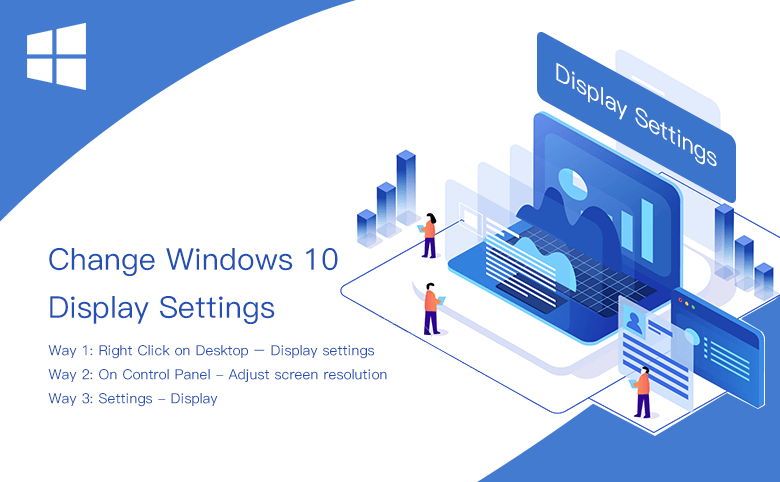
Display settings have a major influence on comfort and productivity. Users can adjust resolution and scaling to make text, icons and applications easier to see. Brightness can also be changed according to the environment, while supported Macs may offer features such as True Tone for a more natural viewing experience. Choosing suitable display options can reduce visual strain during long working sessions.
Mac users with external monitors can manage connected displays through the same settings area. macOS allows supported displays to be arranged according to their physical position, helping create an efficient multi-monitor workspace. Night Shift can also be useful in the evening by adjusting display colours. The best configuration depends on whether your Mac is mainly used for office work, entertainment or creative tasks.
Configure Keyboard, Mouse and Trackpad Settings
Input devices are central to the way a Mac feels to use. Keyboard settings allow users to adjust features such as key repeat behaviour and modifier keys. Trackpad settings provide controls for tracking speed, scrolling and gestures, while mouse settings can be used to change movement and clicking preferences. These adjustments can make navigation considerably faster and more comfortable.
Different users naturally prefer different input styles. Someone who writes frequently may want faster key repetition, while another user may prefer slower movement for greater precision. Trackpad gestures can also improve multitasking by making it easier to switch between applications and desktops. Spending a few minutes adjusting these options can have a surprisingly positive effect on everyday productivity.
Manage Notifications and Focus Settings
Notifications can be useful, but too many alerts can quickly become distracting. macOS lets users control which applications are permitted to send notifications and how those alerts appear. You can decide which apps deserve immediate attention and reduce interruptions from less important software. This creates a cleaner working environment and helps keep the desktop focused.
Focus settings take notification management further by allowing users to create distraction-reducing modes. A Focus configuration can be useful during work, study, meetings or personal time. Depending on your preferences, selected people and applications can remain available while other notifications are temporarily limited. This gives users greater control over when their Mac demands attention.
Review Privacy and Security Settings
Privacy and security deserve particular attention when configuring a Mac. Applications may request access to information such as your microphone, camera, photos, location or files. Reviewing these permissions regularly helps ensure that applications only receive the access they genuinely need. If an application no longer requires permission, users can review the relevant setting and make an informed decision.
Security controls can also include features related to application access, system protection and other sensitive resources. Users should be cautious when granting powerful permissions such as Full Disk Access. If an unfamiliar application requests extensive access, investigate why it needs that permission before approving it. Good privacy habits can help protect personal information while keeping the Mac convenient to use.
Manage Users, Accounts and Login Options
A Mac can support multiple user accounts, making it practical for households, workplaces or shared environments. System Settings allows users to manage accounts and determine whether someone has administrator privileges or a standard account. Keeping administrative access limited can be a sensible security practice, particularly when multiple people use the same computer.
Login and Lock Screen options can also be customised to suit personal preferences. Users can configure password-related behaviour and other options that affect access to the Mac. A strong password combined with appropriate locking behaviour provides an important layer of protection. These settings are especially valuable on MacBooks that are regularly carried between home, work and other locations.
Manage Internet, Wi-Fi and Network Settings
Network settings control how your Mac communicates with the internet and other networks. Wi-Fi options allow users to connect to wireless networks, forget saved connections and review available networks. macOS also provides options for managing VPN connections and other network configurations. Understanding these controls can be helpful when troubleshooting connection problems.
If your Mac suddenly struggles to connect, checking network settings can be a useful first step. Confirm that Wi-Fi is enabled and that the correct network is selected. Forgetting and reconnecting to a problematic network may sometimes resolve connection issues. For more advanced problems, users may need to review additional network configuration or contact their internet provider.
Manage Battery and Energy Settings
Battery management is particularly important for MacBook users. macOS provides information about battery usage and offers options designed to reduce unnecessary power consumption. Depending on the Mac and macOS version, features such as Low Power Mode can help extend battery life. Adjusting display brightness and sleep behaviour can also reduce energy use.
Good battery habits do not require constant monitoring. Instead, users can configure sensible sleep and display settings and avoid unnecessarily demanding background activity. When working away from a charger, reducing screen brightness and enabling suitable power-saving options can help the Mac last longer. These simple adjustments can be especially useful during travel or long working sessions.
Use Accessibility Settings on Mac
Accessibility features make macOS more adaptable for users with different needs. Options are available for vision, hearing, mobility and other areas of interaction. Features such as VoiceOver, Zoom, larger text, display adjustments and keyboard accessibility can change how people interact with their Mac. These tools are integrated into macOS rather than requiring separate accessibility software.
Accessibility settings can also benefit users who simply want a more comfortable experience. Larger text may help with readability, while Zoom can make detailed interface elements easier to inspect. Audio and pointer adjustments can provide additional flexibility. Exploring these options demonstrates how macOS can be adapted to different working styles rather than forcing everyone to use the same configuration.
Update macOS and Manage Software Settings
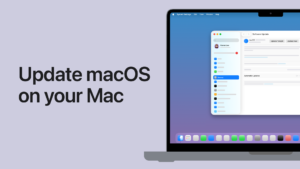
Keeping macOS updated is an important part of maintaining a secure and reliable computer. Software updates can introduce new features, improve compatibility and address security issues. Users can check available updates through the relevant System Settings area and review automatic update options. Installing updates regularly reduces the risk of continuing to use outdated system software.
Before a major operating system upgrade, it is sensible to ensure important files are backed up. Users who rely on specialist applications should also check compatibility when preparing for a significant macOS release. Regular updates are generally beneficial, but taking a little time to prepare can make the upgrade process smoother and reduce unexpected interruptions.
Troubleshoot Common Mac System Settings Problems
Sometimes a setting may appear to be missing or behave differently from expected. This can happen because macOS versions use different layouts, or because certain options depend on the Mac model, connected hardware or account permissions. Searching within System Settings is often the fastest way to locate a control that is difficult to find manually.
For basic problems, restarting the Mac and installing available system updates can be useful first steps. If a setting refuses to change, check whether another user account, privacy permission or application is affecting it. Avoid changing advanced options without understanding their purpose. When a problem involves important system functions or persistent errors, official technical support may be the safest option.
Tips for Getting the Most From Mac System Settings
The best way to use Mac system settings is to customise them gradually. Start with the features you use most frequently, such as display, keyboard, notifications and trackpad controls. Once those are comfortable, explore privacy, accessibility, battery and networking options. This approach prevents unnecessary changes while helping you discover useful features at a manageable pace.
It is also worth reviewing important settings occasionally rather than configuring them once and forgetting about them. Applications can change their permission requirements, macOS updates can introduce new features, and your own workflow may evolve. A short review every few months can help ensure that your Mac remains secure, efficient and aligned with how you actually use it.
Conclusion
Mac system settings provide the foundation for controlling and personalising a Mac. From appearance and display options to privacy, security, battery management and accessibility, these controls give users considerable flexibility without requiring third-party applications. Understanding where important options are located makes everyday tasks easier and helps users build a Mac environment that matches their individual requirements.
The key is to explore settings thoughtfully rather than changing everything at once. Adjust the options that have the greatest impact on your workflow, review privacy permissions regularly and keep macOS updated. With a little exploration, even new Mac users can gain greater control over their computer and enjoy a smoother, more personalised experience.
Frequently Asked Questions About Mac System Settings
What are Mac system settings?
Mac system settings are the controls used to manage and customise different aspects of macOS. They include options for appearance, displays, sound, networks, privacy, security, accounts, accessibility, notifications and other core features.
How do I open Mac System Settings?
Click the Apple menu in the top-left corner of your Mac and select System Settings. You can then browse the sidebar or use the built-in search function to find a specific option.
What happened to System Preferences on Mac?
Apple renamed System Preferences to System Settings in newer versions of macOS and redesigned the interface. Many familiar controls remain available, although their locations and presentation may have changed.
How can I customise my Mac?
You can customise your Mac by changing wallpaper, appearance, Dock behaviour, notifications, display settings, keyboard preferences, trackpad gestures and other available options through System Settings.
How do I manage privacy permissions on a Mac?
Open the privacy and security section of System Settings to review permissions for features such as the camera, microphone, location, photos and files. You can then decide which applications should have access.
How can I improve MacBook battery life?
Reducing display brightness, adjusting sleep settings, limiting unnecessary background activity and using available power-saving features can help extend MacBook battery life.
How do I update macOS?
Open System Settings and look for the software update section. From there, you can check whether a newer version of macOS is available and review available update options.
Why can I not find a particular Mac setting?
The location of settings can vary between macOS versions and Mac models. Try using the System Settings search field, as it can often locate an option faster than browsing the sidebar.
Can I reset individual Mac settings?
Many settings can be changed back manually to their previous values. However, there is not one universal reset for every macOS preference, so the appropriate method depends on which setting is causing the problem.